Taking a full page screenshot can be frustrating when a webpage is longer than your screen. You may need to scroll, take several screenshots, and combine them later.
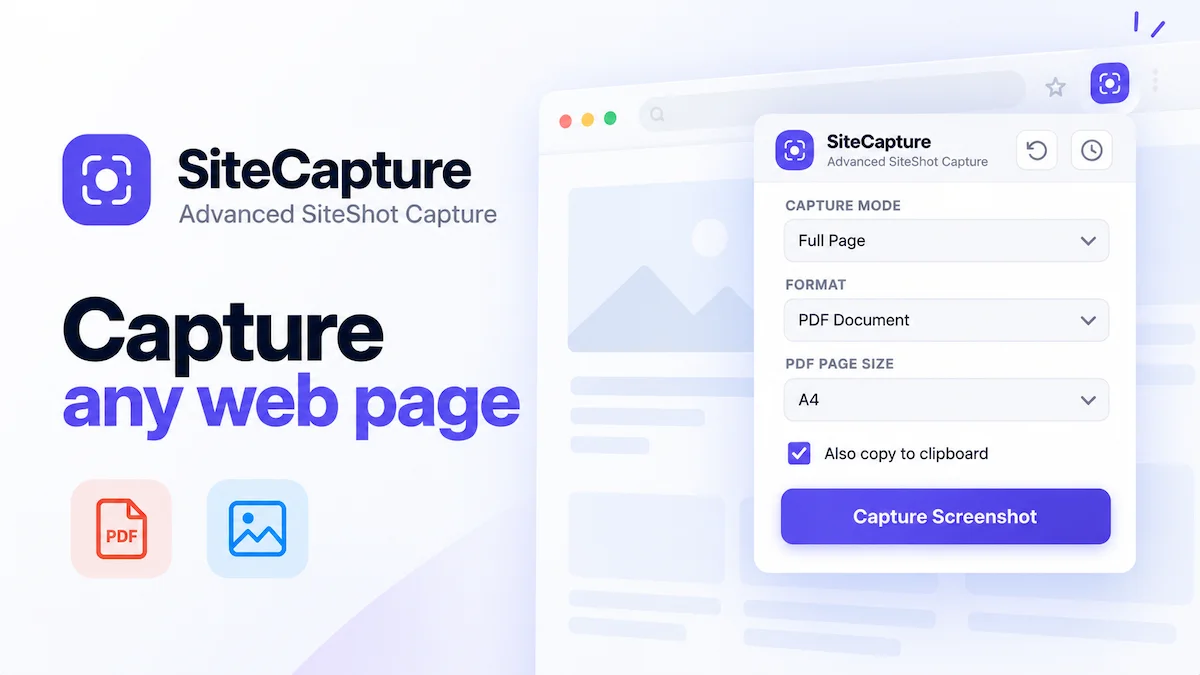
SiteCapture is a full page screenshot Chrome extension designed to solve this problem. It can capture the visible part of a webpage, the entire scrollable page, or a specific area. You can then save the result as PNG, JPEG, WebP, or PDF.
The simple interface makes it useful for students, designers, developers, marketers, and anyone who regularly works with webpages.
Capture an Entire Webpage
The main feature of SiteCapture is its full-page screenshot option. It automatically captures the complete scrollable webpage instead of limiting the screenshot to the visible screen.
This can be useful for saving long articles, product pages, reports, websites, and online documents. SiteCapture also handles sticky headers correctly. Instead of repeating a fixed header throughout the screenshot, it captures it only once.
Another useful detail is that the tool avoids the duplicated seam that can appear at the bottom of long webpage screenshots.
Select Only a Specific Area
You do not always need to capture an entire page. Sometimes you may only want a product image, pricing section, table, or particular design element.
SiteCapture’s Select Area mode lets you click an element or drag a rectangle around the exact area you want. This saves you from capturing a large page and cropping it later.For quick editing and sharing, this can make the screenshot process much faster.
Save as PNG, JPEG, WebP or PDF
SiteCapture supports several popular formats. You can save screenshots as PNG, JPEG, WebP, or PDF, depending on what you need.
PNG is useful when image quality matters. JPEG can be convenient when you want a smaller image file, while WebP provides another modern image option. PDF is useful for sharing webpage captures as documents.
For PDF files, SiteCapture supports A4, US Letter, Legal, and one continuous page formats.
Custom Width for Responsive Testing
SiteCapture also includes a custom-width capture option. You can enter a specific width and preview how a webpage looks without actually resizing your browser window.
This can be helpful for designers and developers checking responsive layouts. It provides a quick way to see how a webpage may appear at a narrower screen width without changing the rest of your workspace.
Clipboard and Screenshot History
SiteCapture lets you copy a screenshot directly to your clipboard or save it to your Downloads folder.
It also keeps a local history of your last 15 screenshots. If you need an earlier capture, you can revisit the history and download it again.
A keyboard shortcut is available as well, allowing you to repeat your last capture from any browser tab. This is especially useful if taking screenshots is part of your daily workflow.
Your Screenshots Stay on Your Device
SiteCapture prioritizes user privacy by operating entirely offline. The extension never makes external network requests or uploads screenshots to remote servers, storing all captures and history strictly within your local browser storage.
This makes it a secure choice for capturing sensitive work dashboards, private documents, or confidential records.
Why SiteCapture Can Be Useful
SiteCapture brings several screenshot options into one Chrome extension. You can capture a complete webpage, select a specific area, save the result in different formats, or copy it directly to your clipboard.
The custom-width option adds value for responsive design checks, while the local history makes it easier to find recent captures. Keeping screenshots on your device also gives users more control over their captured content.
If you regularly work with webpages, a full page screenshot tool can save time compared with taking and combining multiple screenshots manually.